Managing SBOMs#
You can configure MSR to generate SBOMs for the artifacts in your projects, either automatically on push or manually for an individual artifact.
This section is intended for MSR administrators who configure SBOM generation for their MSR instance and its projects, and who view, download, and delete the SBOMs of the artifacts in those projects.
Supported SBOM Formats#
MSR generates SBOMs in the following formats:
- SPDX (
application/spdx+json): A Linux Foundation standard, widely used for open-source license compliance and supported by a broad range of tools. This is the default format. - CycloneDX (
application/vnd.cyclonedx+json): An OWASP standard designed for application security use cases, such as vulnerability and dependency analysis. Software Composition Analysis (SCA) tools commonly expect this format.
Both formats are widely adopted and machine-readable. Select the format that your downstream compliance, SCA, or dependency-tracking tooling expects, as described in Select the SBOM Format.
Note
Support for the CycloneDX format is available since MSR 4.13.8.
Manage SBOMs Using the Web UI#
Use the MSR web console to configure SBOM generation and to view, download, delete, and replicate SBOMs.
Prerequisites#
Before configuring SBOM generation, ensure the following:
- MSR is installed and operational, deployed using Docker Compose or on your Kubernetes cluster.
- You have administrator-level access to the MSR web console.
- The Trivy adapter is registered and set as the default scanner. Trivy ships with MSR and requires no additional installation. To verify that Trivy is enabled, in the MSR web console, navigate to Administration > Interrogation Services > Scanners and confirm that Trivy is marked as the default scanner. Use the Edit action to test the connection before saving.
Select the SBOM Format#
The SBOM format is a system-wide setting. All SBOMs that MSR generates after you change the setting use the newly selected format. You cannot configure the format per project.
- Log in to the MSR web console using your administrator credentials.
- Navigate to Administration > Configuration > System Settings.
- Under SBOM Format, select SPDX or CycloneDX from the drop-down list.
-
Click Save.
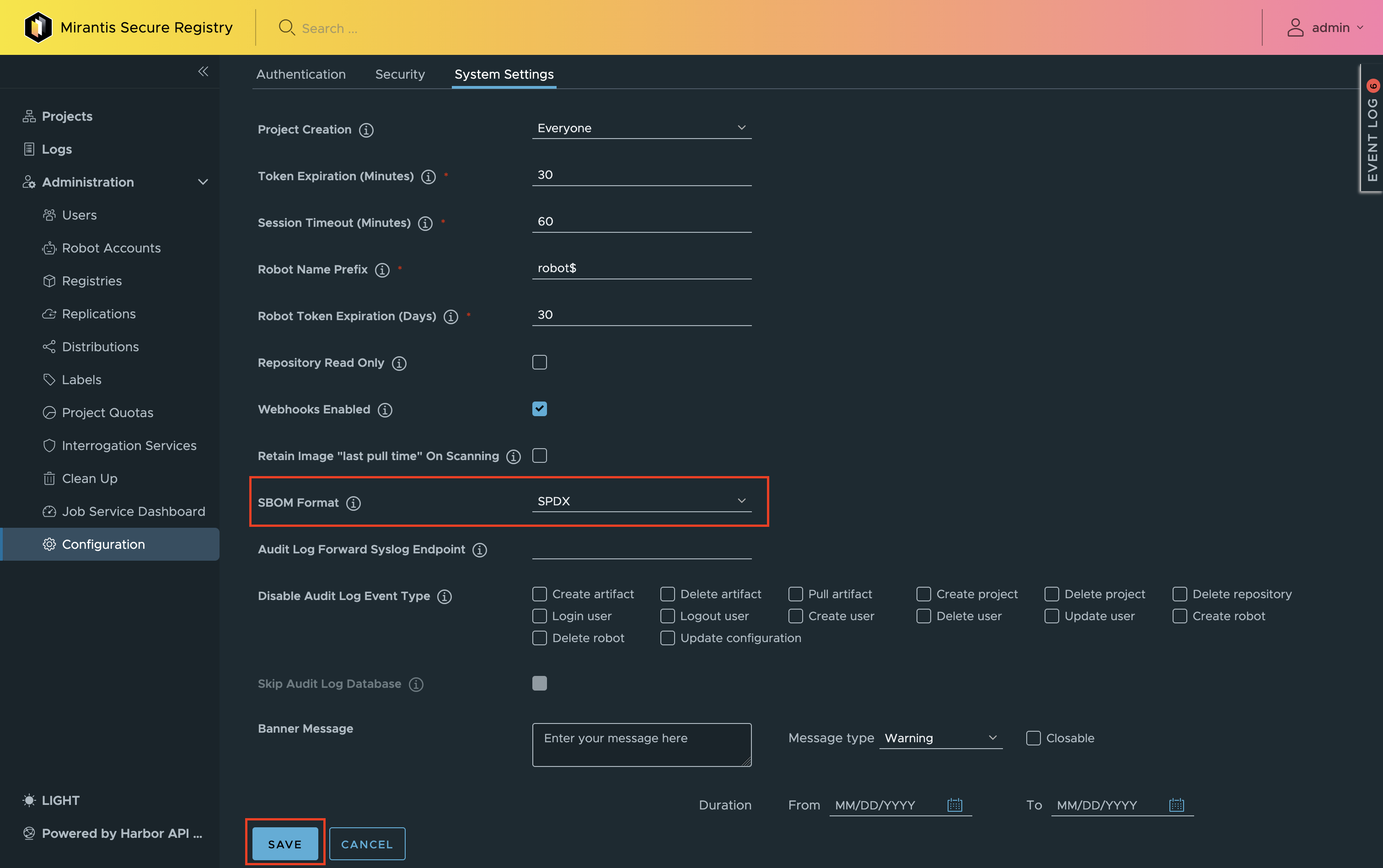
Note
Changing the SBOM format affects only the SBOMs generated after the change. MSR does not delete, convert, or regenerate existing SBOM accessories, which keep the format they were originally generated in.
However, the web console displays only the SBOMs that match the currently configured format. An SBOM generated in the previous format remains stored until you delete it or garbage collection reclaims it, but it is not displayed. If you switch back to a format in which an artifact already has an SBOM, that SBOM becomes visible again without being regenerated.
Enable Automatic SBOM Generation#
You can configure a project so that MSR automatically generates an SBOM for every artifact pushed to it:
- Navigate to Projects in the MSR web console.
- Select a project, then click Configuration.
- Under SBOM generation, select the Automatically generate SBOM on push check box.
-
Click Save.
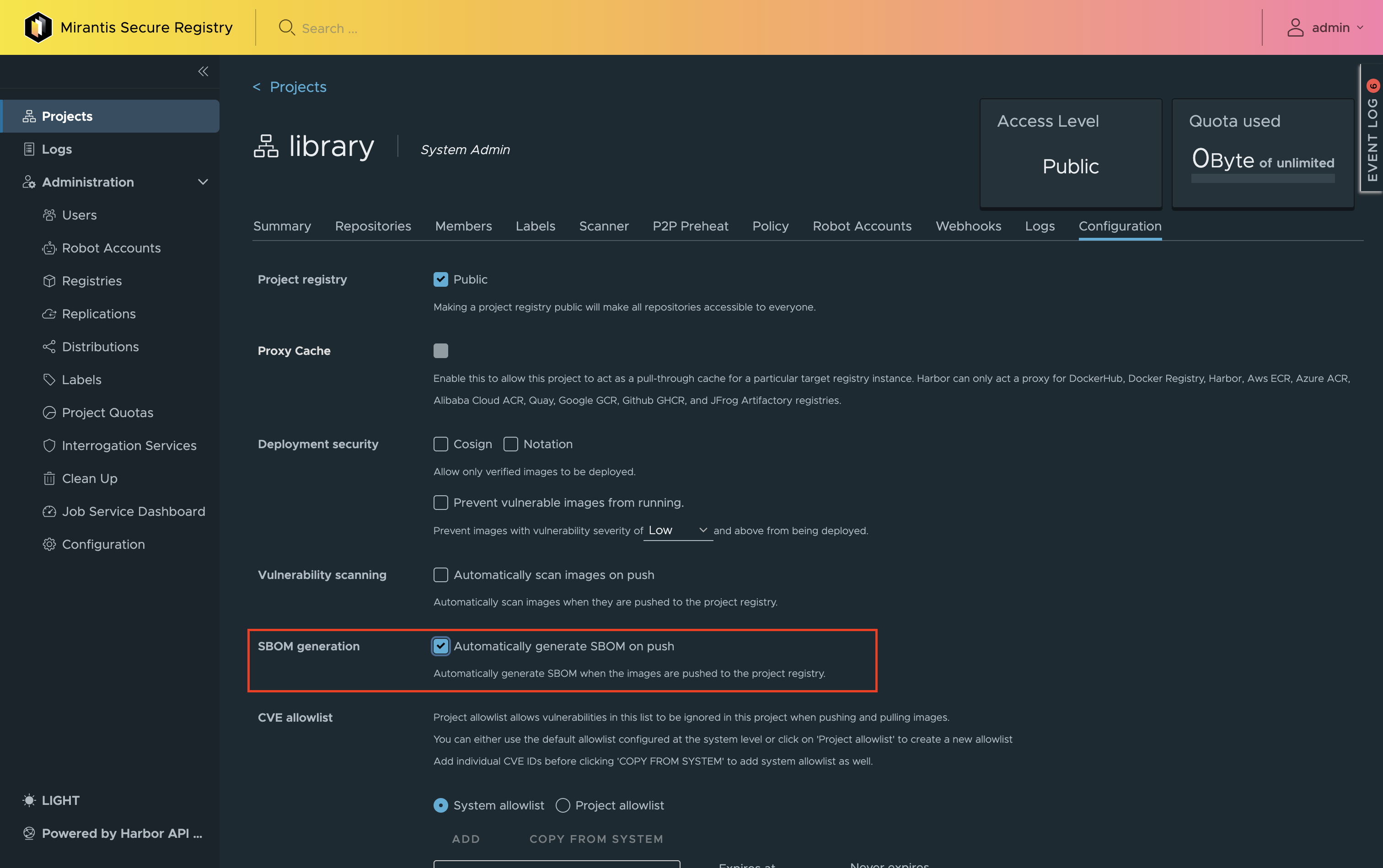
Once the option is enabled, every artifact pushed to the project triggers an SBOM generation job that uses the system-wide SBOM format.
Generate an SBOM Manually#
If automatic SBOM generation is not enabled for a project, you can trigger SBOM generation for an individual artifact:
- Navigate to the project repository and open the Artifacts tab.
- Select the check box next to the artifact.
-
Click Generate SBOM.
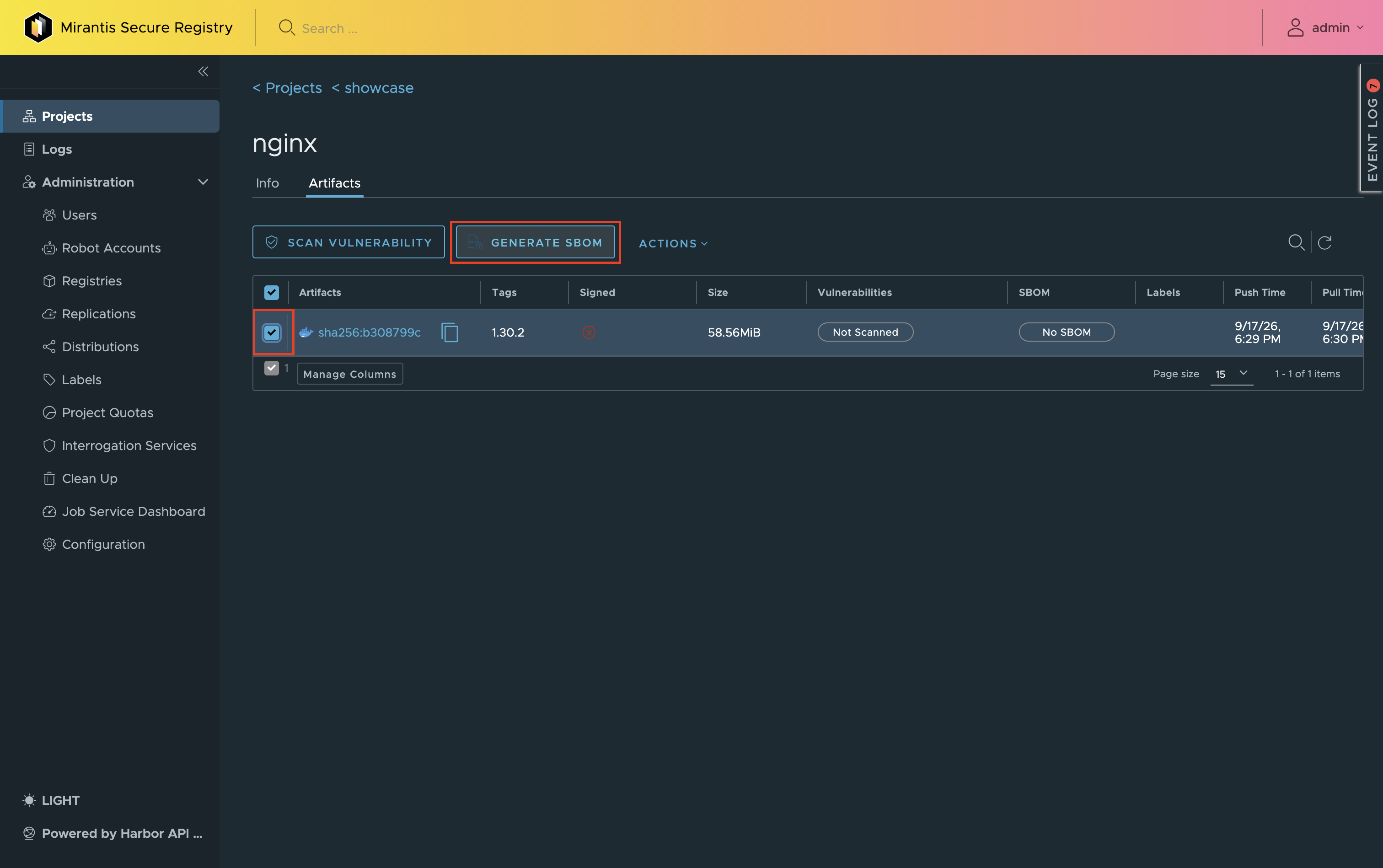
To cancel the generation while it is in progress, use the Actions drop-down menu.
View and Download an SBOM#
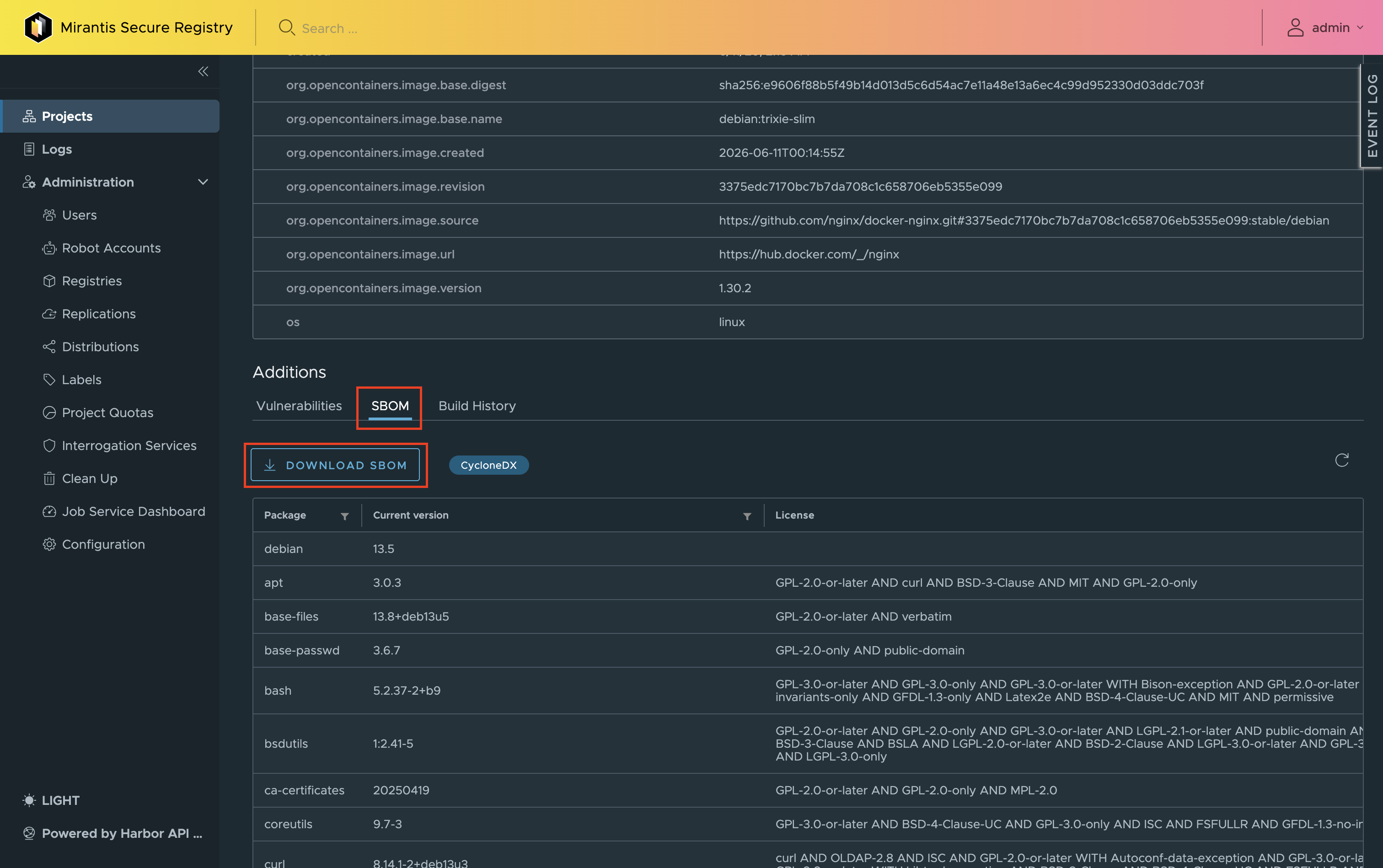
Once the generation completes, the Additions section of the artifact details page displays the SBOM tab that contains:
- The list of packages found in the artifact, with their current versions and licenses.
- A badge that indicates the format of the SBOM, SPDX or CycloneDX.
- The Download SBOM button that downloads the raw SBOM file.
Delete an SBOM#
You can delete an SBOM independently of its parent artifact:
- Navigate to the project repository and open the Artifacts tab.
- Expand the artifact to display its accessories.
-
Next to the accessory of the
sbom.harbortype, click the ⋮ (three dots) and select Delete.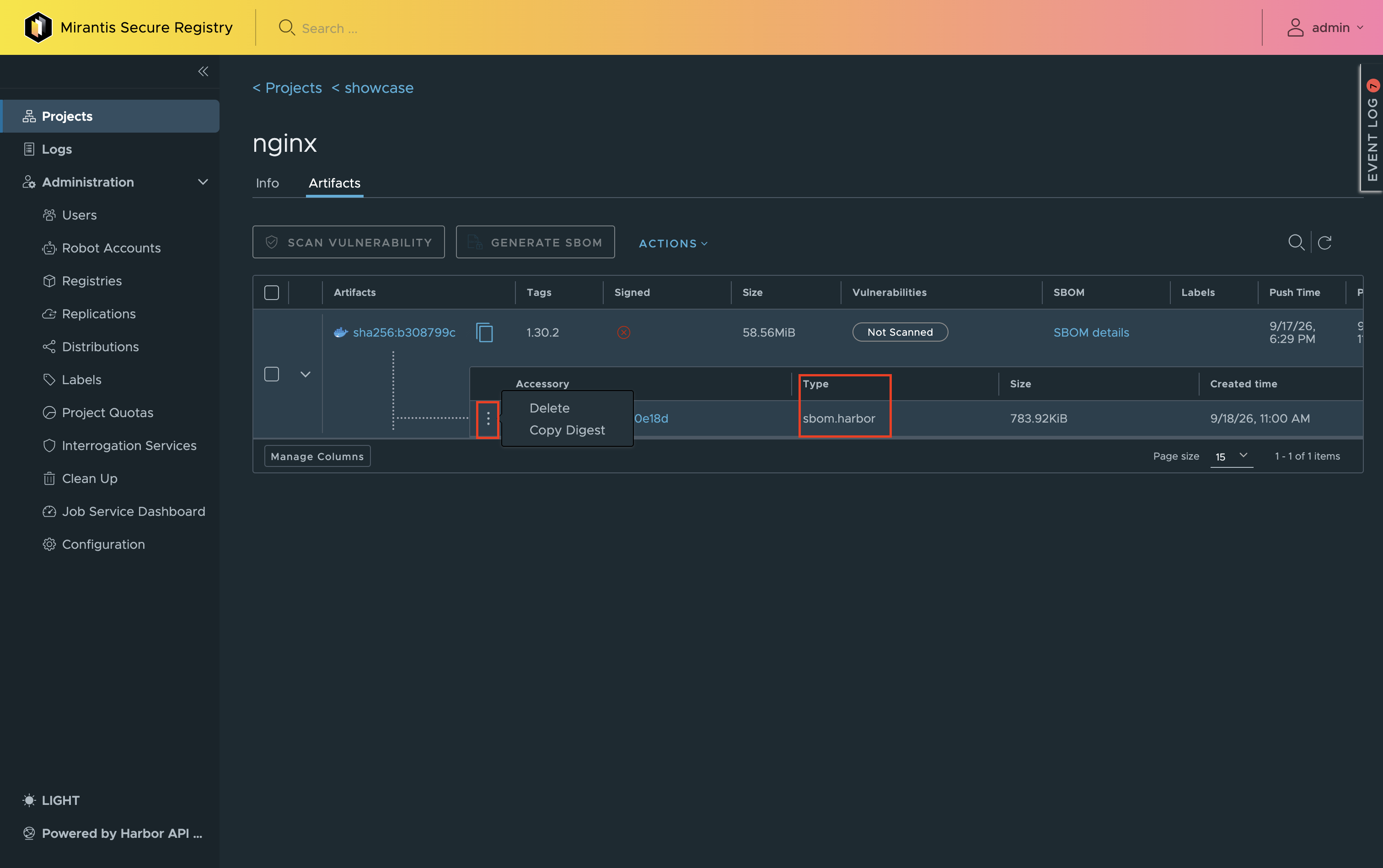
Deleting the parent artifact also deletes its SBOM accessory.
Note
As with other artifacts, MSR only marks a deleted SBOM for deletion. The underlying blobs are reclaimed during the next garbage collection run. For details, refer to Managing Garbage Collection.
Replicate SBOMs#
SBOM accessories are replicated together with their parent artifact, so replicating SBOMs requires no additional configuration.
- Configure a replication endpoint and create a pull-based or push-based replication rule between MSR instances, or between MSR and another registry. For details, refer to Configuring Replication.
- Run the replication rule. MSR replicates each artifact together with its SBOM.
Manage SBOMs Using ORAS#
ORAS is a CLI tool for pushing, pulling, and managing OCI artifacts directly in an OCI-compliant registry. As MSR stores SBOMs as OCI accessories attached to their parent artifact, you can use ORAS to discover and pull the SBOM of an artifact from the command line, without using the web console. If an artifact has both an SPDX and a CycloneDX SBOM, ORAS can retrieve either of them.
Prerequisites#
- Mirantis Container Runtime (MCR) or another Docker client is installed locally.
- ORAS is installed locally.
-
You are logged in to the registry using MCR:
docker login <MSR-instance>
Procedure#
-
Discover the referrers attached to the artifact, filtering for the SBOM accessory type:
oras discover <MSR-instance>/<project>/<repository>:<tag> --artifact-type application/vnd.goharbor.harbor.sbom.v1Example of system response:
<MSR-instance>/<project>/<repository>@<sha-artifact> └── application/vnd.goharbor.harbor.sbom.v1 └── <sha-sbom> └── [annotations] ├── created: "<timestamp>" ├── created-by: ... ├── org.opencontainers.artifact.created: "<timestamp>" └── org.opencontainers.artifact.description: SPDX JSON SBOM -
Pull the SBOM accessory using its manifest digest:
oras pull <MSR-instance>/<project>/<repository>@<sha-sbom>Example of system response:
✓ Skipped application/vnd.oci.image.layer.v1.tar 330/330 KB 100.00% 0s └─ <sha-sbom-layer> ✓ Skipped application/vnd.goharbor.harbor.sbom.v1 273/273 B 100.00% 0s └─ <sha-sbom-config> ✓ Pulled application/vnd.oci.image.manifest.v1+json 768/768 B 100.00% 322µs └─ <sha-sbom> -
Fetch the manifest of the SBOM accessory:
oras manifest fetch <MSR-instance>/<project>/<repository>@<sha-sbom> -
Fetch the SBOM blob:
oras blob fetch <MSR-instance>/<project>/<repository>@<sha-sbom-layer> -o sbom.spdx.json
Limitations#
- The SBOM format is a system-wide setting. You cannot set it per project or per repository.
- Changing the SBOM format does not regenerate or convert existing SBOMs. Only new SBOM generation jobs use the newly selected format.